

Every team has the same question on Monday morning.
What is happening this week?
Until now, the answer in Fractal lived in two places. Routines were in one list. Task deadlines were in another. To understand the week, you had to put the pieces together yourself.
Today we are adding Calendar. It shows everything scheduled in your workspace on a single timeline.
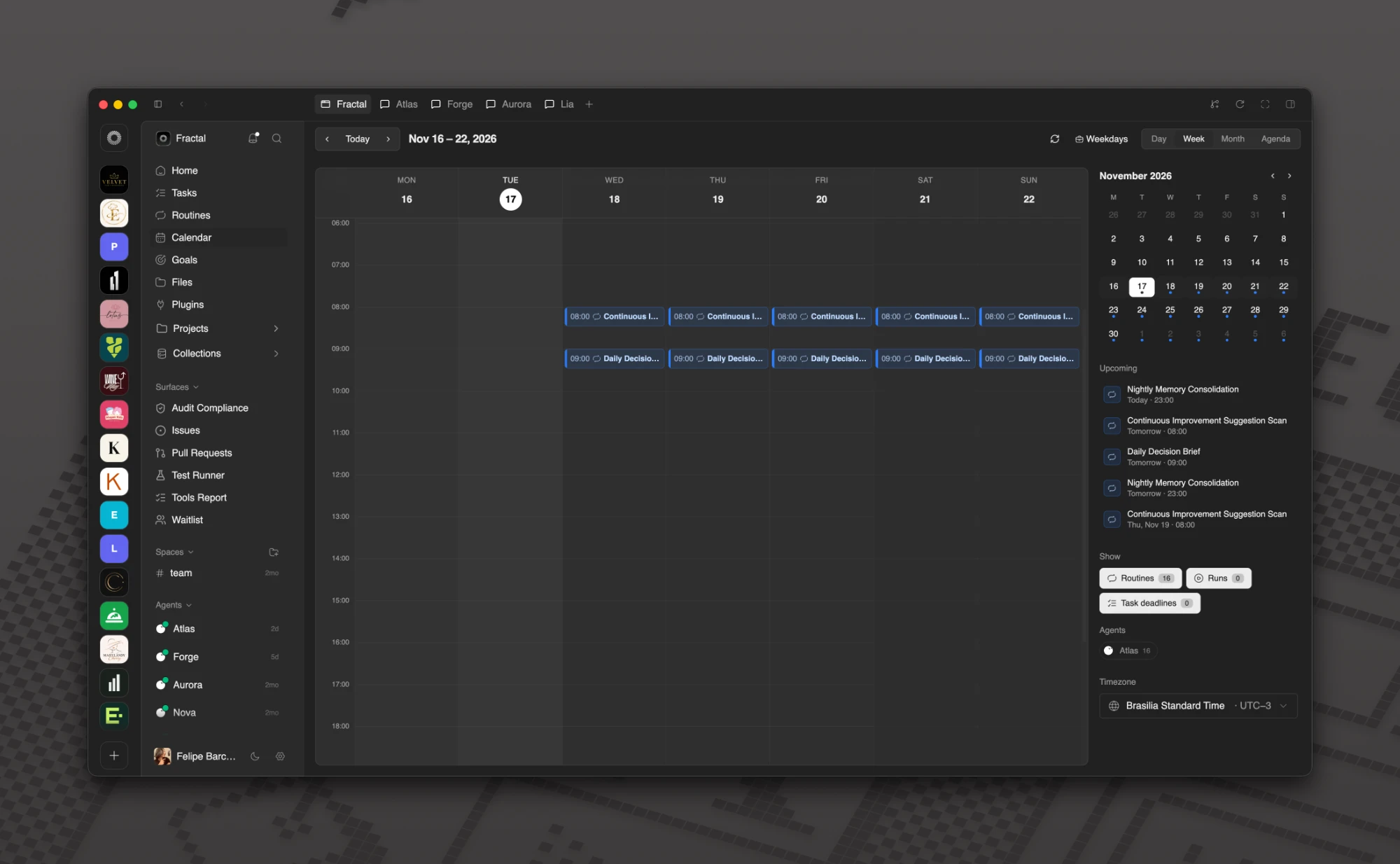
One place for the week
Calendar brings three kinds of work together.
Routines. The recurring work your agents do on a schedule, such as a morning brief or a nightly review. You see each one at the time it will run.
Runs. What actually happened. When a routine has already run, the calendar shows the real run, not a guess.
Task deadlines. Anything with a due date appears next to the automations that surround it.
That last part matters. A deadline on Friday means something different when you can see the routines that feed into it.
Look at it the way you plan
Switch between day, week, month, and agenda views, depending on the question you are asking. Day and week are for what is happening now. Month shows the shape of the quarter. Agenda is a plain list when you just want to read what is next.
On the right, a small month calendar helps you jump to any date. Below it, an Upcoming list shows the next things that will run, so you can see what is coming without scrolling.
If your team works Monday to Friday, hide the weekend with one click.
Focus on what you need
A busy workspace can have a lot on the calendar. You decide what to show.
Turn routines, runs, and task deadlines on or off, and see how many of each there are. Filter by agent to see only what one teammate is responsible for. Choose the timezone you want to read the calendar in, which is useful when your team is spread across cities.
Filters apply instantly, so you can explore without waiting.
Clear when it is busy
When several things are scheduled around the same time, Calendar keeps the view readable. Overlapping items sit side by side, and when there are too many, they group into one compact marker you can open.
Routines you have paused stay visible, drawn with a dashed outline, so you can tell the difference between work that will run and work that is off.
The calendar also refreshes on its own and when you come back to the window, so what you see stays current.
Built for the keyboard, too
For people who live in the calendar, there are shortcuts for the common moves.
- T jumps to today.
- Left and right arrows step through time.
- D, W, M, and A switch between day, week, month, and agenda.
- B hides or shows weekends.
A view, not another thing to maintain
Calendar does not hold any data of its own. It reads from your routines and your tasks, which means there is nothing extra to keep in sync.
It is also a read-only view for now. To change when something runs, you edit the routine, and the calendar updates.
What teams use it for
A few ways we expect teams to use it:
- Plan the week. Open the week view on Monday and see which routines will run, and which deadlines are due.
- Spot clashes. See when several routines are scheduled at the same hour, and move one before it becomes a problem.
- Check in on the past. Look back at what actually ran, and when.
- Align across timezones. Read the same week in your colleague's timezone before you schedule something together.
Where it fits
Fractal is built around the idea that your workspace should remember and act on its own. Routines do the work, tasks track it, and agents carry it out.
Calendar adds the missing layer: a clear view of time. It helps your team see the work, plan around it, and trust that it is happening.
Calendar is available now in the workspace sidebar.